
If you have enabled Remote Desktop on your Windows computer and are using the Windows App on your Mac to connect to and control your Windows computer, you may encounter an issue where Typeitin on your Mac only types in lowercase letters, regardless of whether you press the Shift key or have Caps Lock enabled.
This behavior is related to the way the keyboard input is being translated between macOS and the Windows environment through Remote Desktop. Fortunately, there is a straightforward fix:
- While connected to your Windows computer through the Windows App on your Mac, go to the Menu bar at the top of your screen.
- Click on the Connections menu option.
- From the dropdown menu, select Keyboard Mode.
- Change the setting to Unicode.
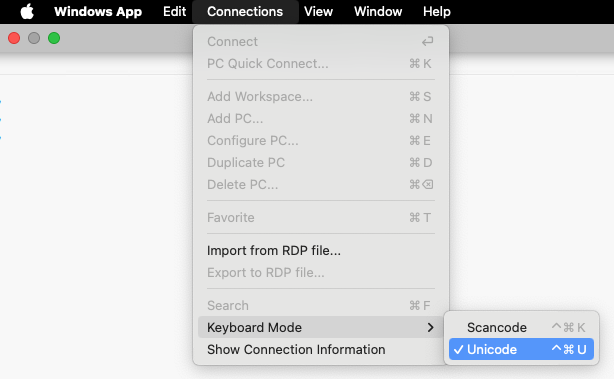
Switching the keyboard mode to Unicode ensures that keystrokes are properly translated, allowing Typeitin to correctly type uppercase letters and special characters.