
You can install Typeitin on a removable USB drive so you can take it with you.
To start this process, first insert a USB drive with some available space.
Next download the zip file with the manual installer:
After the download is complete, open the downloaded zip file. Some of the files may look different based on what version you are installing.
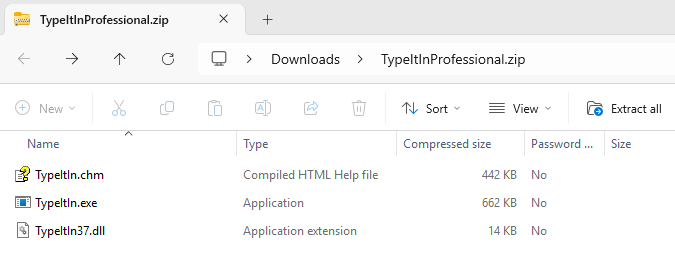
Click the Extract all button.
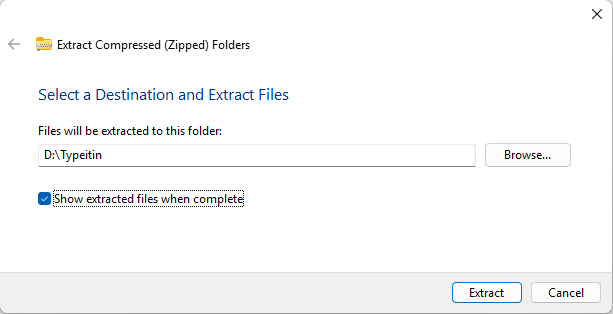
Select a destination folder on the USB drive. In this example, the USB drive is drive D: and the folder name is Typeitin.
Click the Extract button.

After the files are extracted, the folder on the USB drive will show the Typeitin files.
If you want to copy your existing Typeitin buttons to the USB drive, see instructions below.
Double click on the TypeItIn.exe (Application) or TypeitinOne.exe (Application) file to start Typeitin. You can do this anytime after you insert the USB drive into a computer.
Make sure the USB drive remains inserted while you use Typeitin. All your button information will automatically be saved to the folder on the USB drive.
When you are done using Typeitin, right click on the Typeitin icon in the task bar tray and select Exit from the pop up menu.
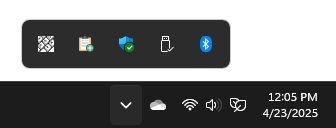
To safely remove the USB drive, click on the USB drive icon before you disconnect it.
How to copy your existing Typeitin buttons to the USB drive.
On the computer with the Typeitin buttons you want to copy, right click on the Typeitin title bar and select Settings from the pop up menu.
In the Settings tab – Backup section, click on the Backup now button (green arrow). Next, navigate to the Typeitin folder on the USB drive and click the OK button. This will create a backup of your buttons on the USB drive.
Close the Settings window. Right click on the Typeitin icon in the task bar tray and select Exit from the pop up menu.
Double click on the Typeitin application on the USB drive to start it. Then right click on the Typeitin title bar and select Settings from the pop up menu.
In the Settings tab – Backup section, click on the Restore button (red arrow). Click Yes in the Confirmation dialog to let Typeitin automatically pick the newest backup files.
Typeitin on the USB drive will now have the same groups and buttons as the Typeitin on your computer.